How to: create userform in excel in hindi Part - 1

Add Comment

My first tutorial showing how to create a simple user form using excel. Thanks for watching.
The code needed for the "add details" button:

Dim iRow As Long
Dim ws As Worksheet
Set ws = Worksheets("Sheet1")

'find first empty row in database
iRow = ws.Cells.Find(What:="*", SearchOrder:=xlRows, SearchDirection:=xlPrevious, LookIn:=xlValues).Row + 1
'check for a Name number
If Trim(Me.example1.Value) = "" Then
Me.example1.SetFocus
MsgBox "Please complete the form"
Exit Sub
End If

'copy the data to the database
ws.Cells(iRow, 1).Value = Me.example1.Value
ws.Cells(iRow, 2).Value = Me.example2.Value
ws.Cells(iRow, 3).Value = Me.example3.Value
ws.Cells(iRow, 4).Value = Me.example4.Value

MsgBox "Data added", vbOKOnly + vbInformation, "Data Added"
'clear the data
Me.example1.Value = ""
Me.example2.Value = ""
Me.example3.Value = ""
Me.example4.Value = ""
Me.example1.SetFocus
Two best ways to convert numbers to words in Excel

Two best ways to convert numbers to words in Excel

Add Comment
In this article I will show you two quick and free ways to convert currency numbers into English words in Excel 2010, 2013 and other versions.
Microsoft Excel is a great program to calculate this and that. It was initially developed to process large data arrays. However, it also lets creating accounting records like invoices, evaluation or balance sheets quickly and effectively.

How to convert a numeric value into English words in Excel

Add Comment

Microsoft provides programming examples for illustration only, without warranty either expressed or implied. This includes, but is not limited to, the implied warranties of merchantability or fitness for a particular purpose. This article assumes that you are familiar with the programming language that is being demonstrated and with the tools that are used to create and to debug procedures. Microsoft support engineers can help explain the functionality of a particular procedure. However, they will not modify these examples to provide added functionality or construct procedures to meet your specific requirements.

How to create the sample function Called SpellNumber

  1. Start Microsoft Excel.
  2. Press ALT+F11 to start the Visual Basic Editor.
  3. On the Insert menu, click Module.
  4. Type the following code into the module sheet.
    
    Option Explicit
    'Main Function
    Function SpellNumber(ByVal MyNumber)
        Dim Dollars, Cents, Temp
        Dim DecimalPlace, Count
        ReDim Place(9) As String
        Place(2) = " Thousand "
        Place(3) = " Million "
        Place(4) = " Billion "
        Place(5) = " Trillion "
        ' String representation of amount.
        MyNumber = Trim(Str(MyNumber))
        ' Position of decimal place 0 if none.
        DecimalPlace = InStr(MyNumber, ".")
        ' Convert cents and set MyNumber to dollar amount.
        If DecimalPlace > 0 Then
            Cents = GetTens(Left(Mid(MyNumber, DecimalPlace + 1) & _
                      "00", 2))
            MyNumber = Trim(Left(MyNumber, DecimalPlace - 1))
        End If
        Count = 1
        Do While MyNumber <> ""
            Temp = GetHundreds(Right(MyNumber, 3))
            If Temp <> "" Then Dollars = Temp & Place(Count) & Dollars
            If Len(MyNumber) > 3 Then
                MyNumber = Left(MyNumber, Len(MyNumber) - 3)
            Else
                MyNumber = ""
            End If
            Count = Count + 1
        Loop
        Select Case Dollars
            Case ""
                Dollars = "No Dollars"
            Case "One"
                Dollars = "One Dollar"
             Case Else
                Dollars = Dollars & " Dollars"
        End Select
        Select Case Cents
            Case ""
                Cents = " and No Cents"
            Case "One"
                Cents = " and One Cent"
                  Case Else
                Cents = " and " & Cents & " Cents"
        End Select
        SpellNumber = Dollars & Cents
    End Function
          
    ' Converts a number from 100-999 into text 
    Function GetHundreds(ByVal MyNumber)
        Dim Result As String
        If Val(MyNumber) = 0 Then Exit Function
        MyNumber = Right("000" & MyNumber, 3)
        ' Convert the hundreds place.
        If Mid(MyNumber, 1, 1) <> "0" Then
            Result = GetDigit(Mid(MyNumber, 1, 1)) & " Hundred "
        End If
        ' Convert the tens and ones place.
        If Mid(MyNumber, 2, 1) <> "0" Then
            Result = Result & GetTens(Mid(MyNumber, 2))
        Else
            Result = Result & GetDigit(Mid(MyNumber, 3))
        End If
        GetHundreds = Result
    End Function
          
    ' Converts a number from 10 to 99 into text. 
    Function GetTens(TensText)
        Dim Result As String
        Result = ""           ' Null out the temporary function value.
        If Val(Left(TensText, 1)) = 1 Then   ' If value between 10-19...
            Select Case Val(TensText)
                Case 10: Result = "Ten"
                Case 11: Result = "Eleven"
                Case 12: Result = "Twelve"
                Case 13: Result = "Thirteen"
                Case 14: Result = "Fourteen"
                Case 15: Result = "Fifteen"
                Case 16: Result = "Sixteen"
                Case 17: Result = "Seventeen"
                Case 18: Result = "Eighteen"
                Case 19: Result = "Nineteen"
                Case Else
            End Select
        Else                                 ' If value between 20-99...
            Select Case Val(Left(TensText, 1))
                Case 2: Result = "Twenty "
                Case 3: Result = "Thirty "
                Case 4: Result = "Forty "
                Case 5: Result = "Fifty "
                Case 6: Result = "Sixty "
                Case 7: Result = "Seventy "
                Case 8: Result = "Eighty "
                Case 9: Result = "Ninety "
                Case Else
            End Select
            Result = Result & GetDigit _
                (Right(TensText, 1))  ' Retrieve ones place.
        End If
        GetTens = Result
    End Function
         
    ' Converts a number from 1 to 9 into text. 
    Function GetDigit(Digit)
        Select Case Val(Digit)
            Case 1: GetDigit = "One"
            Case 2: GetDigit = "Two"
            Case 3: GetDigit = "Three"
            Case 4: GetDigit = "Four"
            Case 5: GetDigit = "Five"
            Case 6: GetDigit = "Six"
            Case 7: GetDigit = "Seven"
            Case 8: GetDigit = "Eight"
            Case 9: GetDigit = "Nine"
            Case Else: GetDigit = ""
        End Select
    End Function
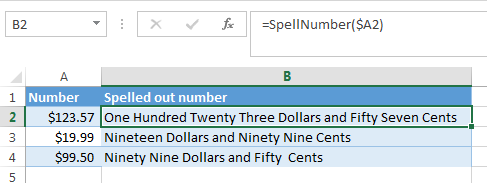
         

How to use the SpellNumber sample function

To use the sample functions to change a number to written text, use one of the methods demonstrated in the following examples:

Method 1: Direct Entry

You can change 32.50 into "Thirty Two Dollars and Fifty Cents" by entering the following formula into a cell:
=SpellNumber(32.50)

Method 2: Cell reference

You can refer to other cells in the workbook. For example, enter the number 32.50 into cell A1, and type the following formula into another cell:
=SpellNumber(A1)

Method 3: Insert Function

To use Insert Function, follow these steps:


Excel 2003:
  1. Select the cell that you want.
  2. Click Insert Function on the Standard toolbar.
  3. Under Or select a category, click User Defined.
  4. In the Select a function list, click SpellNumber, and then click OK.
  5. Enter the number or cell reference that you want, and then click OK.

Excel 2007 and 2010:

  1. Select the cell that you want.
  2. Click Insert Function on the Formulas ribbon.
  3. Under Or select a category, click User Defined.
  4. In the Select a function list, click SpellNumber, and then click OK.
  5. Enter the number or cell reference that you want, and then click OK.
Chat with Friends through Command Prompt

Chat with Friends through Command Prompt

Add Comment
1) All you need is your friend's IP Address and your Command Prompt.

2) Open Notepad and write this code as it is.....!

@echo off
:A
Cls
echo MESSENGER
set /p n=User:
set /p m=Message:
net send %n% %m%
Pause
Goto A


3) Now save this as "Messenger.Bat".

4) Open Command Prompt.

5) Drag this file (.bat file) over to Command Prompt and press Enter.

6) You would then see something like this:


7) Now, type the IP Address of the computer you want to contact and press enter
You will see something like this:


8) Now all you need to do is type your message and press Enter.
Start Chatting.......!


DONE....ENJOY.~!!